How to set up a QR code queue in about ten minutes
Create a queue, print the QR poster that comes with it, open the display board link on any screen in the room, and press Next when you are ready for the first person. Visitors scan the code with the camera app, take a number on their own phone and watch the line from where they are standing. There is nothing to install on either side.
What to decide before you start
Two questions, and both take a minute. First: does everyone in your line need the same thing, or do they split into groups that go to different people? A café is one line. A clinic with a front desk, exam rooms and a cashier is three stops for the same person. Second: where do people physically stand while they wait, and will they stay there? If they leave the room, notifications matter more than the screen.
You do not have to get this right on day one. Everything below can be changed later without touching the poster, because the QR code points at the queue, not at its settings.
The four steps
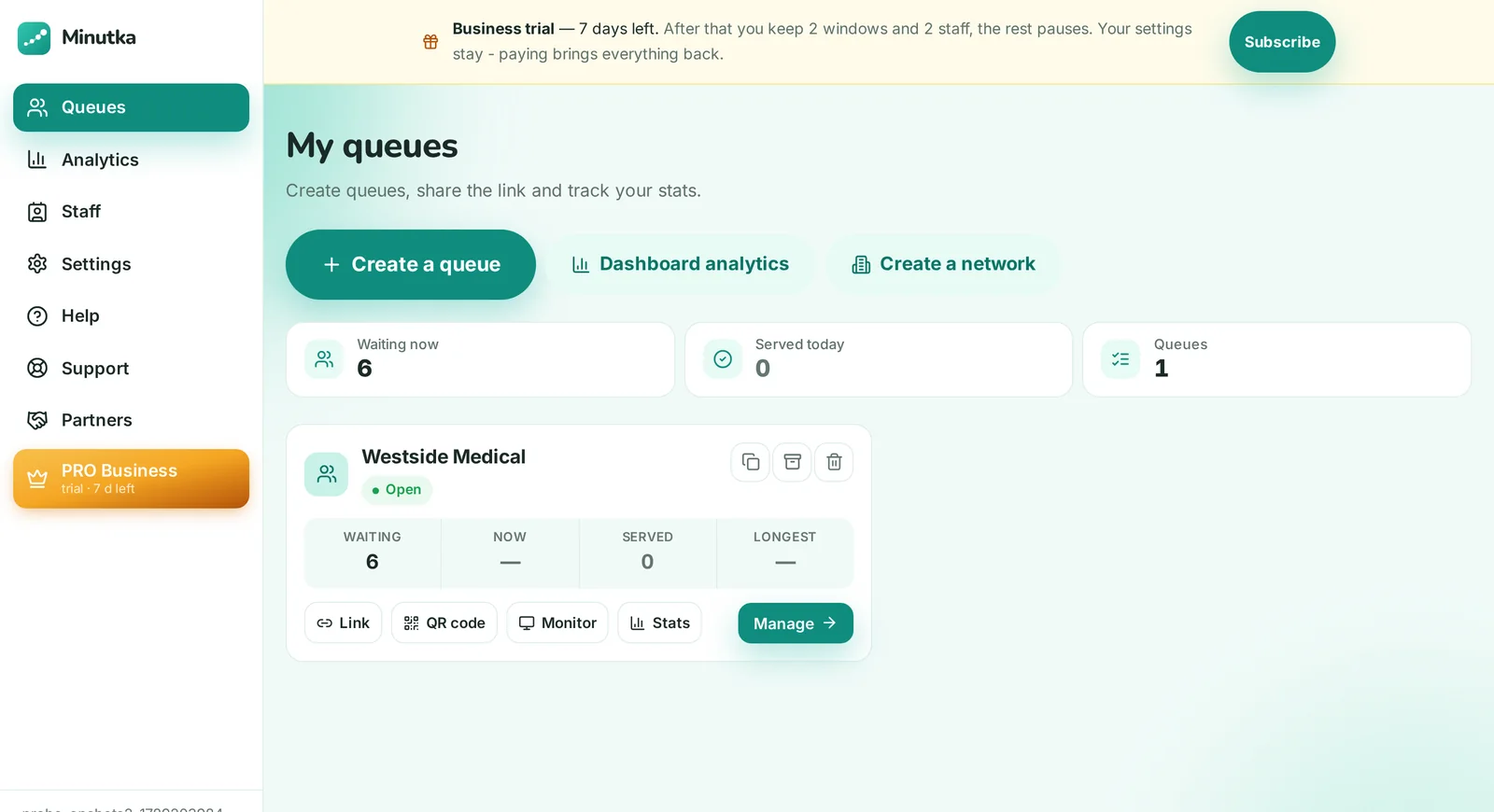
- 11. Create the queueGive it the name your visitors use for your place. Pick a template if one matches your line: it pre-fills counters, services and the wording people will see, so you are editing rather than inventing.
- 22. Print the QR posterThe poster comes ready with the queue. Print it, and put it at eye level where people stop: the entrance, the counter, the gate. Laminate it if it lives outdoors.
- 33. Open the board on a screenCopy the board link and open it on the TV, tablet or laptop in the room. Press the speaker button once to enable voice call-ups, then put the page in full screen.
- 44. Call the first visitorOpen the operator screen on a phone or computer, choose the counter you are working at, and press Next. The number appears on the board and the visitor gets a notification.
What the visitor actually does
This is the part worth testing yourself before you go live, because it is the only part your visitors will judge you on.
- They point the phone camera at the poster. No app: the camera app opens the link.
- They see your name, what the wait looks like right now, and a button. If you set up services, they pick one first.
- They take a number and stay on the page, or walk away. The page updates by itself and shows how many people are ahead.
- When their turn comes up, the number appears on the board, the room hears it announced, and their phone buzzes if they connected a channel.

Setting up the screen so the room can read it
The board is a web page, which means the practical questions are about the room, not the software.
| Question | Rule of thumb |
|---|---|
| What screen? | Whatever is already mounted. A 32 inch TV covers a normal waiting room. |
| What plays it? | The TV’s own browser works; a mini PC or media stick is more reliable all day. |
| Can they read it? | Stand at the farthest chair and read the number out loud. If you squint, make the layout bigger in settings. |
| Sound? | Press the speaker icon once after every restart; browsers mute pages until a human clicks. |
| Several screens? | Open the same link on as many screens as you like, or give each its own zone on the Business plan. |

Getting staff going
The operator screen is another link, and it works on a phone. Whoever is serving picks their counter and works with three buttons: Next, no-show, and break. There is no training curve worth the name.
Who sees what
On the free plan there are two staff accounts per queue, which covers a small front desk. Paid plans have no limit. Staff work under roles: owner, administrator, operator, each with its own rights, PIN sign-in and an action log. That log matters in a place where people ask who called ticket 42 and why.
If someone steps out
Mark them as a no-show and they move down the line rather than disappearing; call them again when they come back. The counter never sits idle waiting for one person to return from the parking lot.
What to check after the first week
The numbers that tell you whether this is working, all of them visible in stats:
- Tickets per day, compared with how many people you think came. A big gap usually means the poster is in the wrong place.
- Average wait by hour. This is the one that pays for itself: it shows exactly when to put a second person on the counter.
- No-shows. A high rate means people are leaving. Either the wait is too long, or they are not being notified in a way they notice.
Frequently asked questions
Creating the queue takes under a minute: a name, and optionally a template that fills in counters and services for a café, clinic, bank, auto shop or pickup point. The rest is physical: printing the poster, sticking it where people stop, and opening the board link on a screen. Most places are serving their first visitor within ten to fifteen minutes, and the first day is mostly about where to put the poster, not about software.
Where people already stop moving and look around: the door they come through, the counter they queue at, the gate they drive up to. Eye level, not knee level. One poster per entrance is usually enough. If your line forms outside, put a second one there: a person who scans from the street is in the queue before they reach the door, which is the entire point.
Any screen with a browser: the TV already on the wall, a tablet propped at the counter, an old laptop. The board is a link, so you open it and leave it open. Press the speaker button once if you want numbers announced out loud, because browsers block audio until someone clicks. On a screen that runs all day, a small media stick or mini PC with a current browser is more reliable than a TV’s built-in one.
Two ways. Your staff can add a person to the line by hand in one tap, which is what usually happens at a counter. Or put a tablet by the door as a kiosk: the visitor presses a button, gets a number on screen and can print a paper ticket. The board calls numbers out loud, so nobody has to stare at a phone.
Yes, on the Business plan. You define services (say, pickups and returns, or teller and loans), give each its own ticket prefix, and tie counters to the services they handle. A counter is only offered its own tickets; a counter with nothing assigned serves everyone. On the free plan there is one flat line per queue and up to two counters on the account.
Three channels at once, and the visitor picks. They can watch the line on their phone (the page updates itself), get a push in the browser, or connect Telegram for a message. The board shows the called number and the counter, and announces it out loud. Nothing is sent by SMS, so a busy day costs nothing extra.