 Minutka
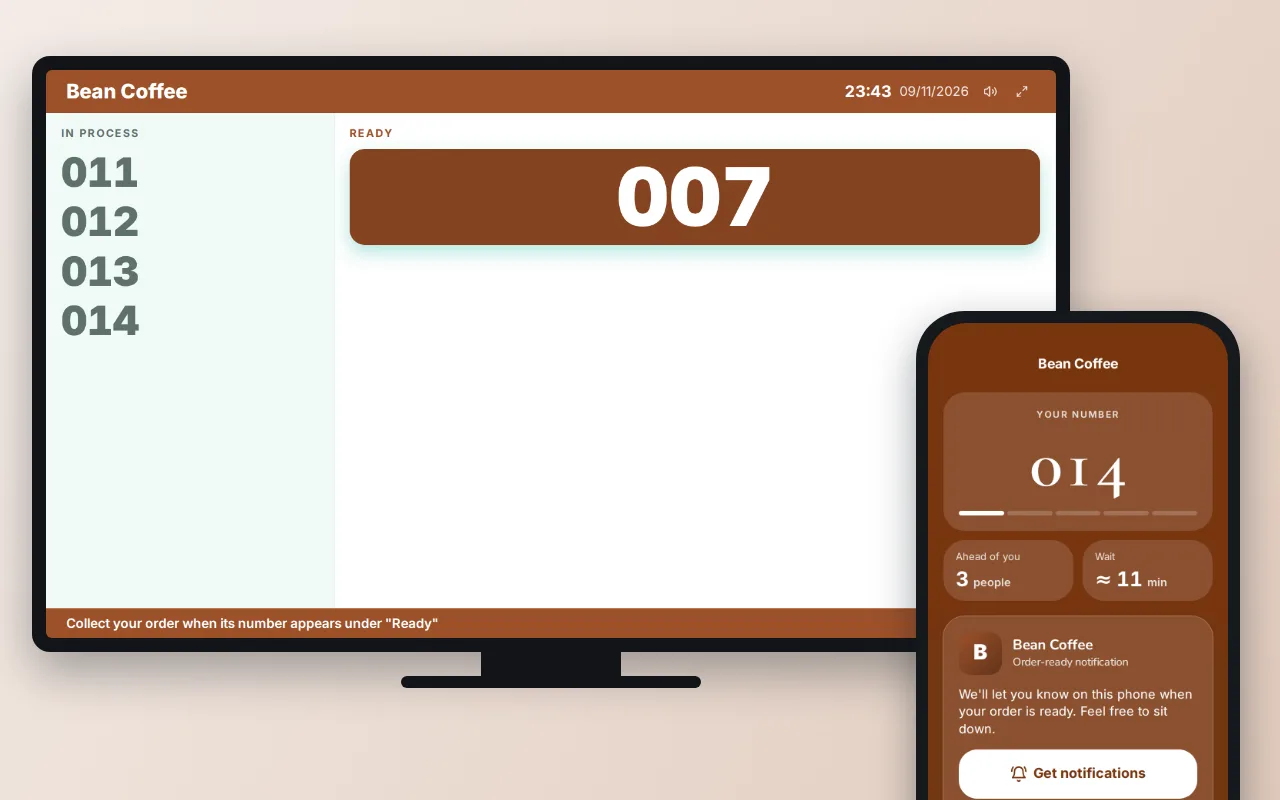
An order ready screen is a display above the pickup counter with two columns: orders being prepared and orders ready to collect. The cashier enters the number from the receipt, the barista or kitchen taps Ready, and the number moves across. Guests watch the screen instead of crowding the counter, and staff stop shouting numbers.
What an order ready screen does
At a busy counter the problem is rarely the coffee. It is the five people standing at the pickup end, each leaning in to ask whether the latte on the bar is theirs, and the barista calling out a number that half the room does not hear. An order ready screen moves that conversation onto the wall. Guests pay, get a number on the receipt, sit down and look up.
Most screens have the same two zones. The left one, usually called Preparing or In progress, tells guests their order has not been forgotten. The right one, Ready, tells them to come and get it. Some add a third zone with a menu or an advertisement, which is where the screen starts paying for itself.
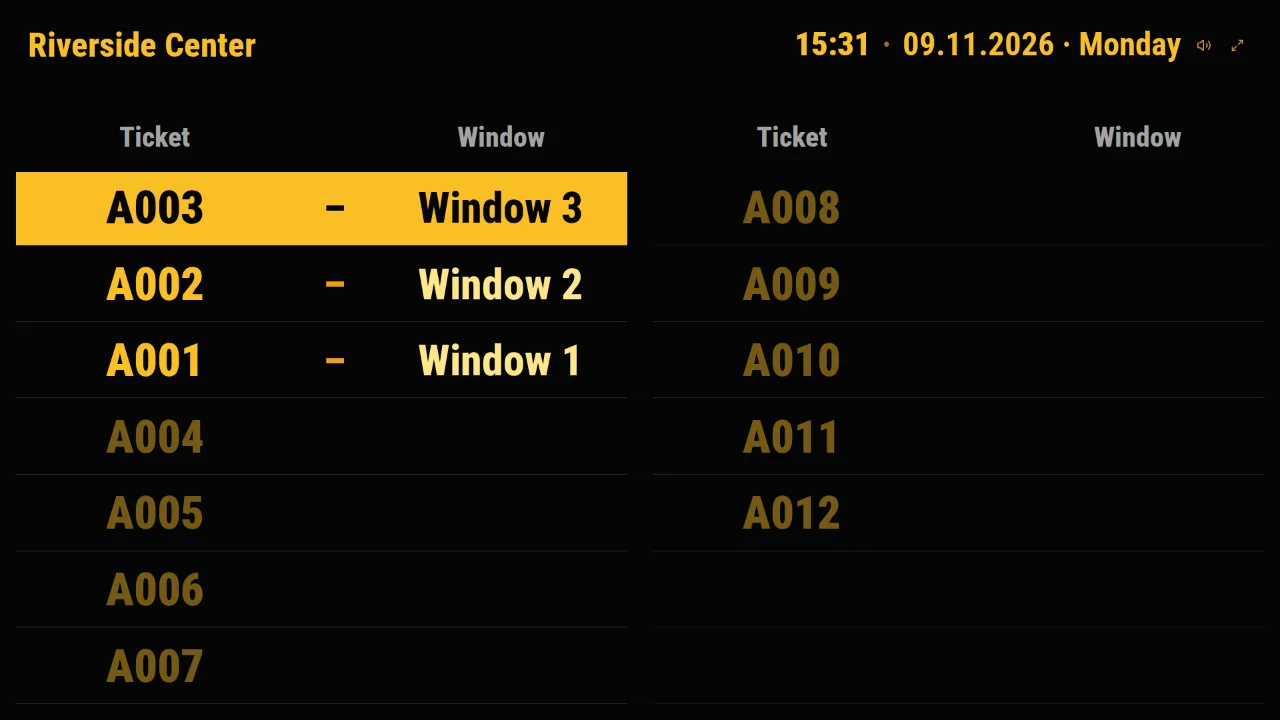
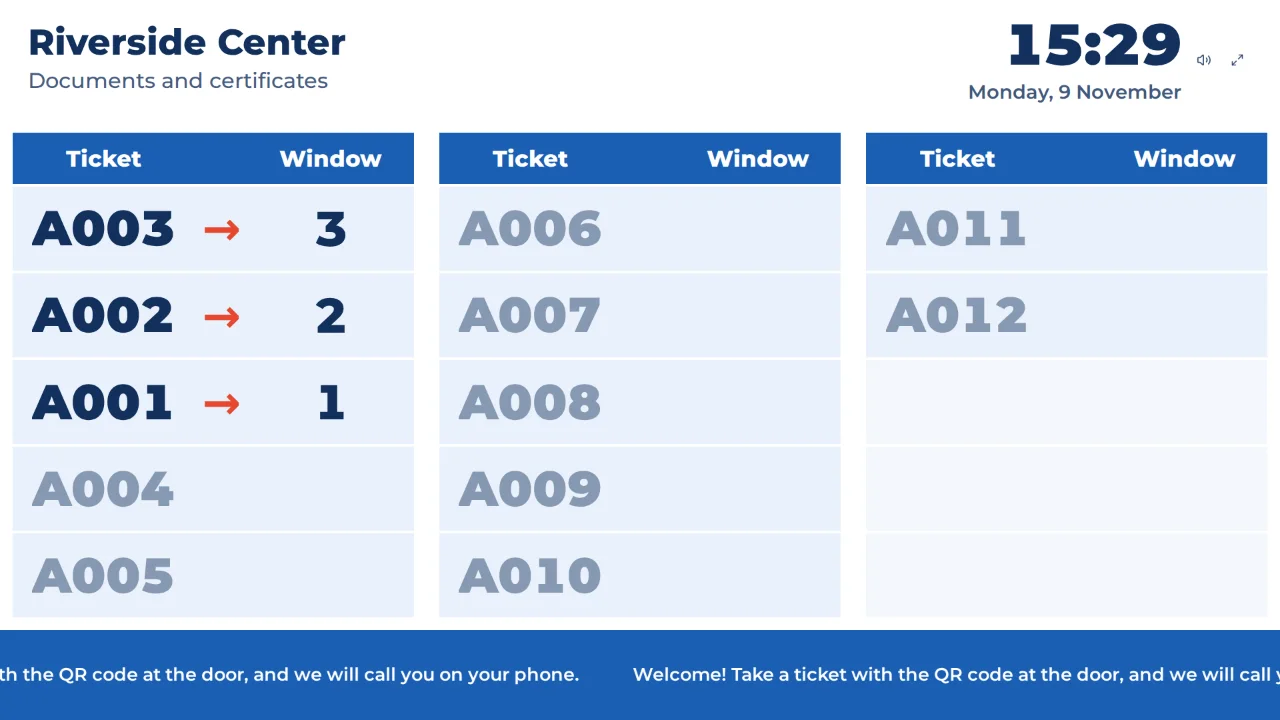
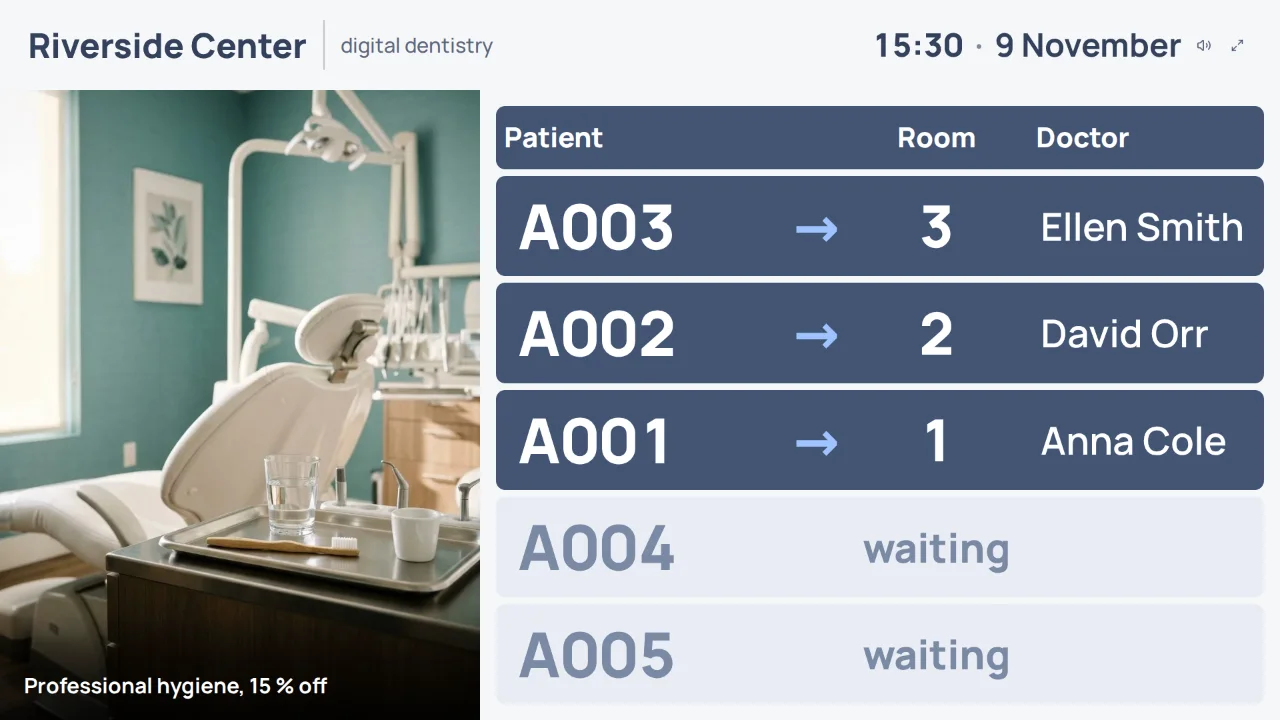
You will see the same thing sold as an order ready display, an order status board or a customer order display. Whatever the name, the screen is the easy part. The parts that decide whether it works are how orders get onto it, how they come off, and what happens when a guest is not looking.
How it differs from a queue board
An order ready screen looks like the number display at a bank or a clinic, and it is tempting to use a queue system as one. The logic underneath is different, and it matters on the first busy morning.
| Queue board | Order ready screen | |
|---|---|---|
| What the number means | Your turn to be served | Your food is waiting |
| Numbers called at once | One per counter; the next call replaces it | Several at once; a new ready order does not replace the last one |
| Order of numbers | Rising, in arrival order | Whatever the receipts say, and in the order the kitchen finishes |
| When a number leaves | When the next person is called | When the guest collects it, or after a set time |
| Wait estimate | People ahead and minutes | Usually none: the kitchen sets the pace, not the line |
The second and third rows are where a plain queue display fails. Three drinks can be ready at once, and a flat white for order 214 may come out before the pastry for 209. A screen that only shows the most recent call would hide the other two orders on the bar. If you run a sit-down restaurant where guests wait for a table rather than for food, that is a different job, covered in how a restaurant waitlist works.
What to show on the screen
A guest looks at the screen for two seconds from across the room. Everything on it should survive that.
| Element | Why it is there | What to watch |
|---|---|---|
| The newest ready number, large | A guest who just heard a chime looks for what changed | It should be the biggest thing on the screen |
| Other ready numbers | People who looked away still find their order | Cap the count; past a dozen or so the digits get too small |
| Preparing column | Reassures guests their order was taken | Smaller and quieter than Ready, so the two are not confused |
| Column titles | Preparing and Ready, in your own words | Short words read from further away |
| Your logo and name | Useful at a food court with ten screens | Keep it in a thin header |
| Menu or ads | Sells the next item while people wait | Never wider than the Ready column |
Order numbers usually work better than names. Names are slower to type at the till, guests share them, and some people would rather not see their name on a wall. If you print names on cups, keep numbers on the screen anyway: the cup tells the barista, the screen tells the room.
How an order gets onto the screen
This is the real choice, and vendor pages tend to skip it because they sell one answer. There are three.
| Way | How it works | Good for | Catch |
|---|---|---|---|
| Built into your POS or KDS | Orders appear when rung up and move when the kitchen bumps them | Kitchens already on a kitchen display system | Tied to that vendor; you use their screen, layout and pricing |
| Typed in by the cashier | The cashier enters the receipt number on a tablet; staff tap Ready | Cafes, bakeries and kiosks whose till has no ready board | One extra entry per order at the till |
| Guest joins by QR code | The guest scans a code and gets a number on their phone | Market stalls and pop-ups with no till numbering | Number on the phone and number on the receipt are not the same |
If your POS already has a ready board, start there. Toast, for example, has an Order Ready Board with In Progress and Ready columns that runs in a TV browser, and orders reach it without anyone typing. Nothing a standalone screen offers beats that. The standalone route makes sense when your till does not have such a screen, when it costs more than the counter justifies, or when you want the screen to do things the till does not, like notify the guest on their phone.
Minutka works the second way. There is no integration with any POS: the cashier types the number printed on the receipt and taps Accept. Typing four digits takes a couple of seconds, but it is a real step, and at a counter doing several hundred orders an hour it is worth timing during a rush before you commit.
How long to keep ready orders on the screen
A screen that only ever adds numbers is full by eleven in the morning. Every good setup has two ways for a number to leave.
- Collected at handover. The person at the pickup end taps the number when the guest takes the order. This keeps the Ready column honest and is the habit to build.
- A timer for orders nobody came for. Someone always pays and leaves, or picks up without anyone noticing. A timeout clears those so new orders have room.
In Minutka the timer is a setting called "Keep a ready order on the display, min". The default is 15 minutes and it accepts anything from 1 to 240. Orders cleared by the timer are recorded as "Nobody came for the order", so you can see how often it happens instead of guessing.
Picking the number
- Coffee bar and fast food: 10 to 15 minutes. Guests are usually standing nearby.
- Bakery or deli with phone orders: 30 to 60 minutes, since people come from the street.
- Food court: shorter rather than longer. A busy hall turns over fast and old numbers confuse new guests.
Repairs, tailoring, dry cleaning and other counters where an order waits days rather than minutes can use the same screen. Set "How long an order waits for collection" to 3, 7, 14 or 30 days, and the ticket survives the end of the day instead of being cleared overnight.
Sound: chime, voice, or nothing
A screen without sound only works for guests who are already looking at it, and in a cafe most of them are looking at their phones. A short chime when a number moves to Ready turns heads without anyone raising their voice. Minutka plays a chime on every ready order and can also say "Order 42 is ready" in the language of the screen.
- Chime only suits a small coffee shop where the barista also says the name.
- Chime and voice suits a food court or a noisy takeaway, where a guest may not see the screen from their seat.
- Silent suits a quiet bakery, as long as the screen faces the seats.
Telling the guest on their phone
The screen covers the room. It does nothing for the guest who stepped outside to take a call. That is what a phone notification is for, and it is the one thing a screen tied to a till rarely offers.
In Minutka, when the cashier accepts an order, the cashier screen shows the order number with a QR code. The guest scans it and the order opens on their phone in the browser, with no app and no account. The page asks whether to let them know when the order is ready. When staff tap Ready, the notification arrives by browser push or Telegram, and the page on the phone changes to "Your order is ready!". The QR code can also go on a printed slip: on the free plan it prints through the normal print dialog, and printing straight to a receipt printer without a dialog is part of Business.
Two honest limits. There is no SMS, so a guest who will not scan stays with the screen and the chime, as before. And on iPhone, browser notifications only work once the order page is added to the Home Screen, which the page offers to do. For a guest who will be back in ten minutes, the screen is usually enough; the phone matters for longer waits and bigger orders.
Pagers or a screen?
Guest pagers, the coasters that buzz and flash, are the classic alternative. They work, and in some places they are still the right call. They solve a slightly different problem, so compare them on what they actually do.
| Guest pagers | Screen only | Screen and phone alert | |
|---|---|---|---|
| What you buy | A set of pagers and a base station | A TV or monitor you may already have | The same screen; guests use their own phones |
| Range | Limited by the radio, often the building | Only people who can see or hear it | Anywhere the phone has a connection |
| Wear and loss | Pagers need charging, cleaning and get carried off | None | None |
| Hygiene | Handed from guest to guest | Nothing to touch | Nothing to touch |
| Guests without a phone | Covered | Covered | Covered by the screen |
| Works when the internet is down | Yes | No, it is a web page | No |
A consumer review guide put ready-made restaurant pager sets at $99 to $200 in November 2026, with six to ten pagers in the cheaper ones, and larger professional systems are quoted by the supplier. The purchase is not the whole cost: the batteries are usually built in and wear out with charging, pagers walk out the door with guests, and each lost or dead one is replaced whole. Count those replacements, the charging base and a repair now and then before you compare a kit with a screen you already own; the same logic for kiosks and ticket printers is worked through in what a queue management system really costs. The last row deserves weight: if your connection is unreliable, a pager kit or a printed number called out loud is the safer backup, and nothing stops you keeping a few pagers for large or slow orders while the screen handles the rest.
Setting up an order ready screen in Minutka
You need a screen with a browser for the room and a tablet or phone at the till. The order screen is on the free plan.
- 1
1. Create a queue with the "Cafe, order pickup" template
It switches the queue to orders mode, sets one pickup point and picks the Orders layout for the screen. For an existing queue, choose the Orders tile under Display design. - 2
2. Open the screen on the TV
Open the screen link in the TV browser or on a media stick, go full screen and click once so it can play sound. Rename the columns if your guests know them by other words. - 3
3. Take orders at the till
The cashier types the number from the receipt and taps Accept. The order appears under Preparing, and the cashier screen shows a QR code the guest can scan to follow the order on their phone. - 4
4. Tap Ready, then Collected
Whoever finishes the order taps Ready and the number moves across with a chime. At handover, tap Collected. Set how many minutes uncollected orders stay before they clear themselves.
The free plan has a two-column screen, Preparing and Ready, with up to 2 service points per account and no cap on orders. The third column for ads or a menu, as a narrow strip or half the screen, comes with media on the screen on Business at $49 a month.
If drinks and hot food are handed out at two ends of the counter, set two windows in the queue and turn on "Each window sees only its own orders" under the Orders tile. Each cashier picks a window once and sees only the orders taken there, while the screen stays shared and shows the number with its pickup window. Statistics show prep time from Accept to Ready, which is the number you actually want for a kitchen, rather than time spent standing at the counter.
Mistakes that make guests ignore the screen
Marking Ready before it is ready
If staff tap Ready when they start the drink, guests walk up to an empty bar and stop trusting the screen within a day. Ready means on the counter, nothing else.
Never tapping Collected
Then the timer does all the clearing, the Ready column always shows ten numbers, and guests cannot find theirs. Put the tablet where the handover happens, not by the till.
Hanging the screen where only staff can see it
Above the pickup point is right. Behind the till, at an angle, or above the queue to order is wrong: the people waiting for food are standing somewhere else.
Letting the ads win
A screen that is mostly menu with a thin strip of numbers sells nothing, because guests look away from it. The Ready column should always be the widest.
If you also run walk-in service elsewhere in the business, the general advice on placing and testing a screen is in how to set up a QR code queue, and the trade-offs between paper tickets and a digital line are in take-a-number systems.
Choose "Cafe, order pickup", open the screen on your TV and take the first order by its receipt number
Set up an order ready screenFrequently asked questions
What is an order ready screen?
A customer-facing display at the pickup counter that shows which orders are still being prepared and which are ready to collect. Staff change an order status with one tap, and the number moves from one column to the other. It replaces calling numbers out loud and, in many places, guest pagers.
Do I need my POS to support an order ready display?
No, but it helps. If your POS has its own ready board, orders appear on it automatically and that is usually the best choice. If it does not, a standalone screen works: the cashier types the receipt number into it when taking the order. Minutka is that second kind and has no POS integration.
What hardware do I need for an order ready screen?
Any TV or monitor with a web browser, or a cheap media stick plugged into one, and a tablet or phone for staff. The screen is a web page, so there is nothing to install on it. A receipt printer is optional.
How long should a ready order stay on the screen?
Until the guest collects it, and no longer. In practice staff tap Collected at handover, and a timer removes orders nobody came for so the screen does not fill up with old numbers. Fifteen minutes is a sensible default for coffee and fast food; a hot food counter may want less.
Is there a free order ready screen?
Minutka's orders mode with the Preparing / Ready screen is on the free plan, which allows up to 2 service points per account with no cap on the number of orders. The ad column next to the numbers is part of media on the screen, on Business at $49 a month.
Writes about how queues work and what you can change in them without buying new hardware.